The Event Screen: Put Your Raffle on the Big Screen
Raffles with a room attached take most of their money in that room. We measured it in the one-night raffle piece: raffles that sold for a fortnight or less took, on average, more than two-thirds of their money on their single biggest day. So the most valuable thing a raffle can do on the night is stay in front of people.
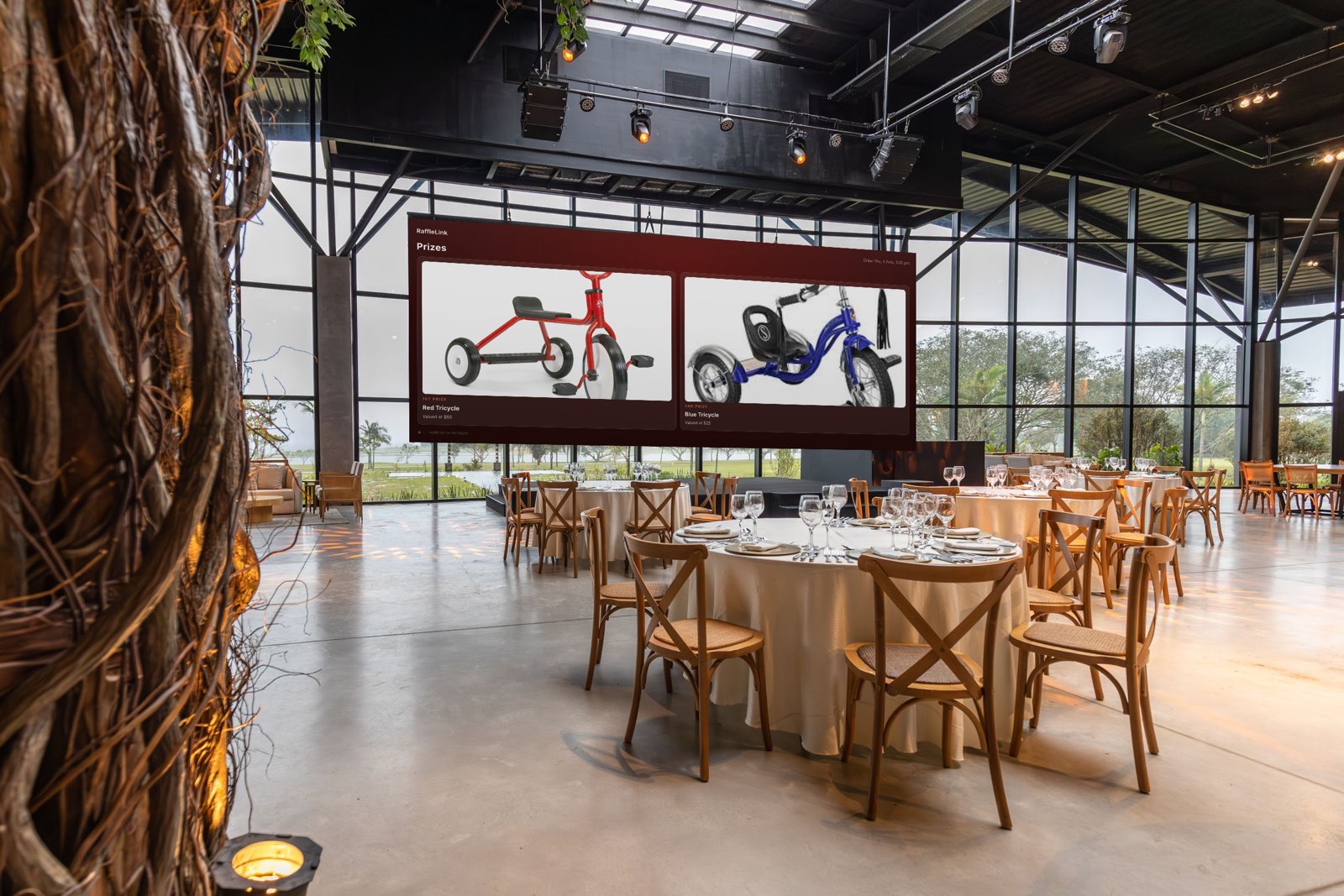
Until now, that meant someone on the microphone every half hour, and a laminated QR code on each table. As of this month there’s a better option. Open any raffle, go to Promote, and you’ll find a new Event Screen tab: a full-screen view of your raffle made for the projector or TV that’s already in the room.
Three scenes
Live tracker. Your raffle’s name (or a headline of your own, like Help us reach $20,000 tonight), the prize pool, a countdown to when sales close and a large QR code, so anyone in the room can buy from their phone without hunting for a link. Switch on sales figures and it also shows dollars raised, tickets sold, a progress bar toward your goal and a ticker of recent sales.
Prize showcase. Every prize as a card with its photo and value, top prize first. If you have more than six, the screen pages through them on its own. For a 50/50 raffle, it shows each prize’s share of the pot and what that share is worth right now, so the number climbs as the night goes on.
Draw. A countdown while you wait, then a prize-by-prize reveal of the winners, starting with the minor prizes and building to the top one. It finishes on a board of every result.
Left on Automatic, the screen shows the tracker while tickets are selling and switches to the draw once sales close. You can also pin a scene, or flip between them on the night.
Setting it up takes a minute
- On your raffle’s Promote page, open the Event Screen tab.
- On the laptop plugged into the projector, choose Open event screen.
- Press F for full screen.
It’s a web page, so there’s nothing to install: any laptop with a browser and an HDMI cable will do. It keeps itself up to date all evening, and if the venue Wi-Fi drops for a moment it holds the last thing it showed rather than going blank.
Your raffle doesn’t need to be live yet, either. Before launch, the link carries a preview code, so you can rehearse at the venue the afternoon before.
Run it from the back of the room
The settings on the Event Screen tab are what every screen showing your raffle follows. Change the scene or the headline on your own laptop or phone, save, and the screen on the wall picks it up within about 20 seconds. Nobody has to walk up to the projector mid-speech.
If you are standing at the projector, the keyboard works too: 1 for the tracker, 2 for the prizes, 3 for the draw, 0 back to Automatic.
Your takings stay private unless you choose otherwise
Your raffle page never shows how many tickets you’ve sold or how much you’ve raised, because together with your ticket price those figures give away your exact takings. The event screen follows the same rule: sales figures are off by default.
Switch them on when a rising total will help the room (it usually does on a gala night), set a fundraising goal for the progress bar to fill toward, and switch them off again afterwards. While they’re on, anyone with the screen link can see them. The sales ticker never shows a buyer’s name or how much they spent.
The reveal, without the risk
The event screen never draws anything. You run the draw on your raffle’s Draw page as usual, exactly as you would without a screen, and the event screen replays the result for the room. Each winner appears as their ticket number and where they’re from (suburb and state), never a name.
For the night itself, use Open on event screen on the Draw page. That link opens straight onto the draw scene and can reveal winners as soon as the draw has run, before you publish the results, so the room hears it from you first. Press Space for each prize, or A to let it play by itself. Keep that particular link on the presenting laptop: it can show winners before they’re public. The ordinary link from the Promote page waits until you publish.
Before the night
- Check the laptop’s power settings. The screen asks the computer not to sleep, but it’s worth making sure.
- Decide on sales figures in advance. A total that’s climbing is a strong prompt to buy. A total that’s stuck is not. If you’re unsure, leave them off and let the prizes do the work.
- Put the QR code up early. The tracker is at its most useful during the first drinks, not just at the draw.
The full walkthrough, including every setting and keyboard control, is in the Help Centre. If you’d like a hand setting it up for an event, reply to any of our emails or call us on 0468 181 779.